 Better Extensions
← All extensions

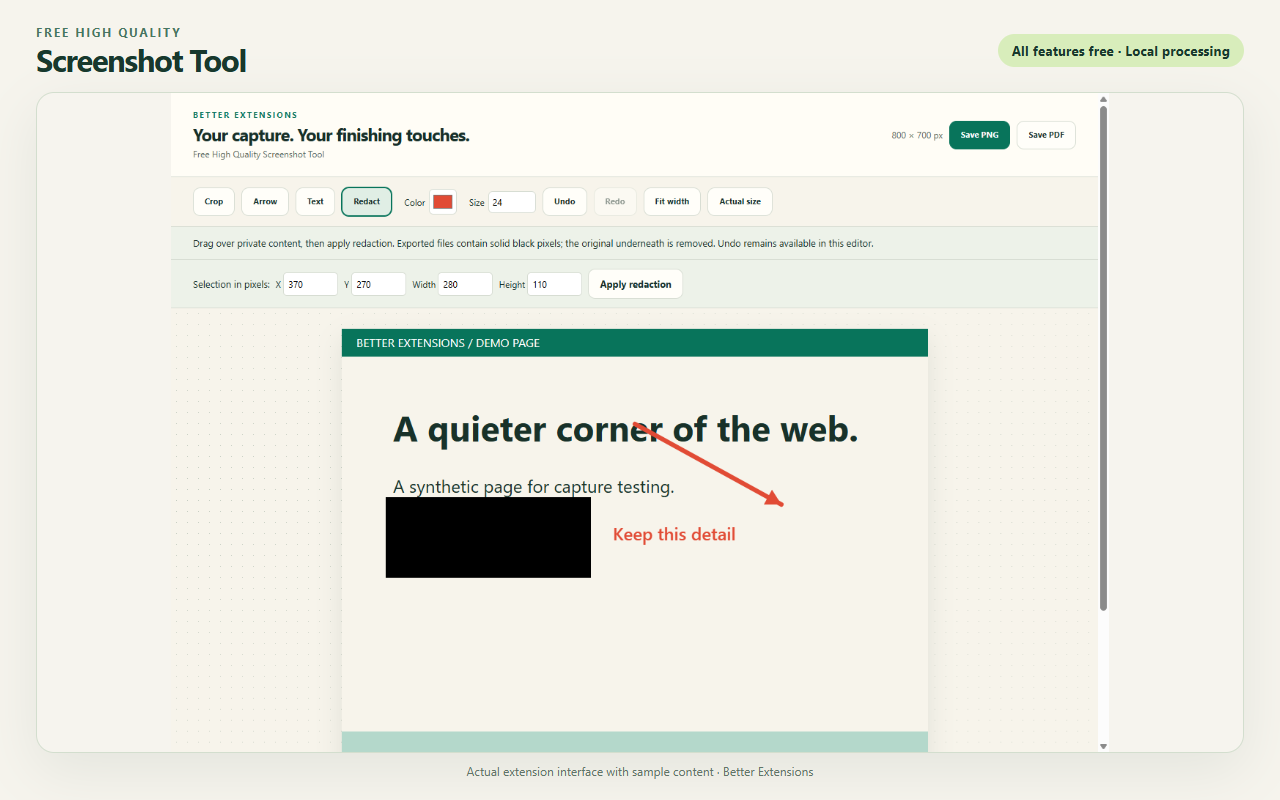
Screenshot Tool with sample content.
Free High Quality Screenshot Tool
Capture a webpage, edit the image, and download a PNG or PDF.
What it does
- Capture a full page, the visible area, or a selection.
- Crop, add arrows and text, or redact selected pixels.
- Undo edits and export the finished image.
How to use it
- Open the extension on the page you want to capture.
- Choose a capture mode and keep the source tab selected.
- Edit the capture, then select Save PNG or Save PDF.
Installation
Install in Chrome or Brave
ZIP downloads use the browser’s Developer mode.
- Download the ZIP and extract it into a folder you will keep.
- Enter
chrome://extensionsorbrave://extensionsin the address bar. - Turn on Developer mode, select Load unpacked, and choose the folder containing
manifest.json. - Pin the extension from the toolbar menu, open it, and read the first-use welcome.
Keep the folder in place. To update, replace its files with the new version and select Reload on the browser’s extensions page.
Reviews and support
Reviews are not available yet. This extension has not been published on the Chrome Web Store.